Authenticate with FIDO2 Passkeys
Follow the instructions provided by your Identity Provider (i.e. Microsoft) to register your passkey onto a mobile device, security key or smart card. You must perform this registration from your PC before you can proceed to use the passkey. Refer to https://support.microsoft.com/en-us/account-billing/set-up-a-security-key-as-your-verification-method-2911cacd-efa5-4593-ae22-e09ae14c6698.
If you are using a FIDO2 smart card or FIDO2 security key to access an MFP, follow the instructions below to login.
If you are using a mobile device to authenticate, see Mobile Authentication with FIDO2 Passkeys for instructions.
-
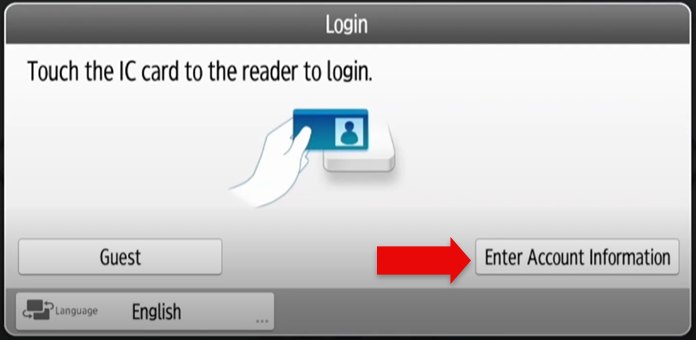
On the MFP Login screen, tap Enter Account Information.
-
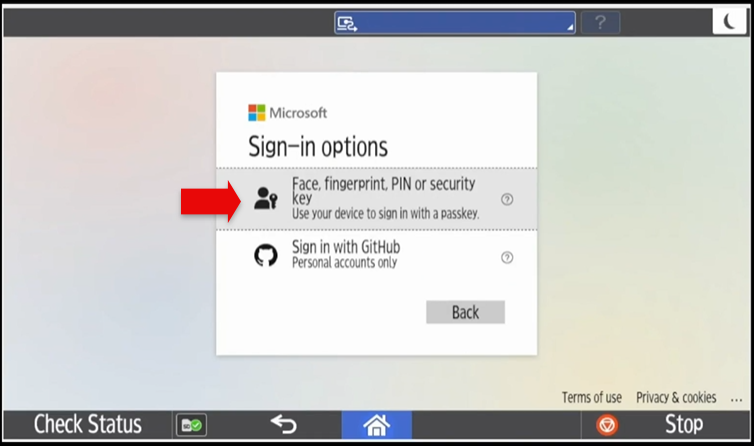
The SLNX Embedded application contacts the external authentication provider. In this example, the Microsoft Sign-in screen appears. Tap Sign-in Options.

-
On the Sign-in options screen, tap Face, fingerprint, PIN or security key.
-
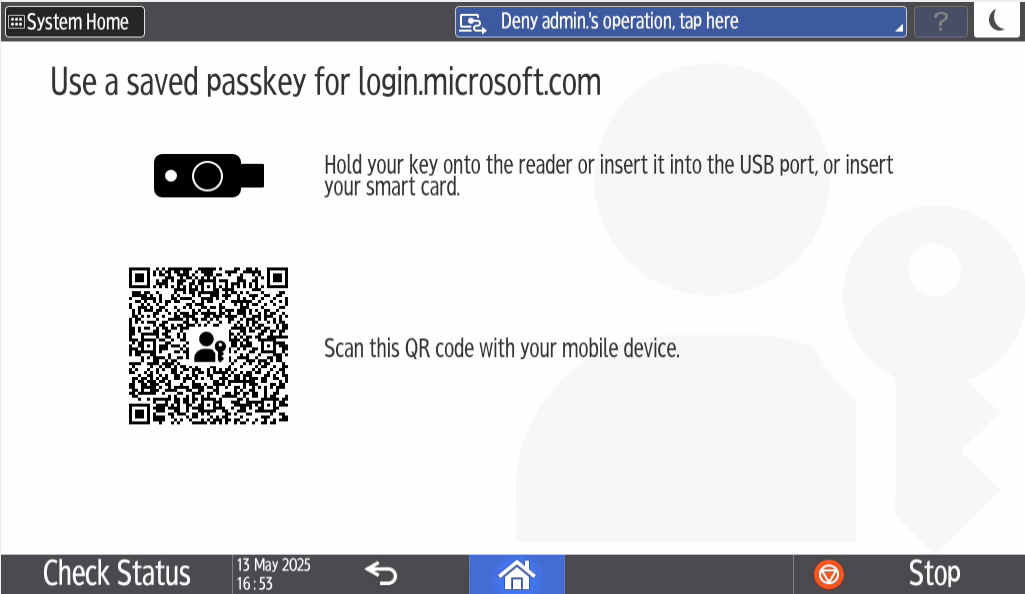
The 'Use a saved passkey for login.microsoft.com screen' appears.
-
If using a USB-based security key, insert it into the USB port.
-
If using a contactless card or an NFC-based security key, hold your key on the reader.
-
If using a contact card, insert your key into the reader.
-
If authenticating on your mobile device, refer to Mobile Authentication with FIDO2 Passkeys.
-
If you insert a USB-based security key, you will see the message "Allow the app Web Authentication to access the USB Device?" Click OK to proceed.
-
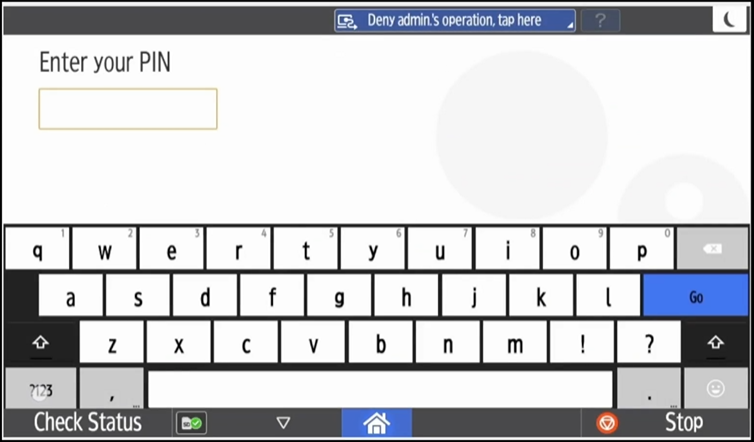
Enter your PIN to proceed and then tap Go. You have a limited amount of time to enter your PIN before the screen times out. Note that this screen does not appear if using a fingerprint authentication method.
If using an NFC-based security key or smart card, authentication proceeds.
However, if using a USB-based FIDO2 security key, press your finger to the sensor on the passkey. Authentication will proceed.
The amount of time you have to touch the sensor is set by the security key manufacturer. If the time is exceeded, the screen defaults to an error screen.
Remove your security key or your smartcard after the authentication is successful.
Removing a contact smartcard from the card reader does not trigger an automatic logout. Ensure you tap Logout.
Troubleshooting
If authentication fails, you may check one of the following causes:
The key has no PIN set · The key is already blocked · No candidate passkey found on the key · The time to enter the PIN is elapsed · The time to touch the key sensor is elapsed · There is a communication error with the key · The key is removedIf you entered the PIN incorrectly, you can try again.
If you exceed the number of attempts, remove the FIDO2 passkey or card and try again. If you have exceeded the number of possible retries, you can remove the key and reset your key before trying again. The key is blocked until you reset it.
