Mobile Authentication with FIDO2 Passkeys
Follow this flow to use your mobile device to login to SLNX on the MFP.
-
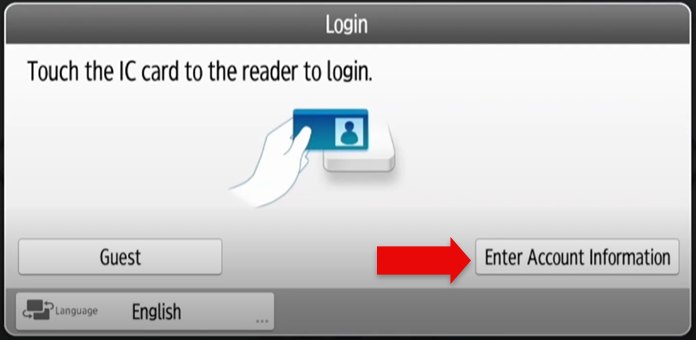
On the MFP Login screen, tap Enter Account Information.
-
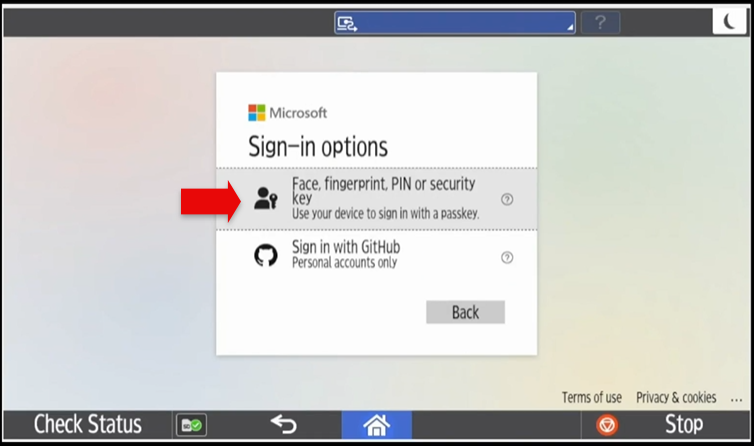
The SLNX Embedded application contacts the external authentication provider. In this example, the Microsoft Sign-in screen appears. Tap Sign-in Options.

-
On the Sign-in options screen, tap Face, fingerprint, PIN or security key.
-
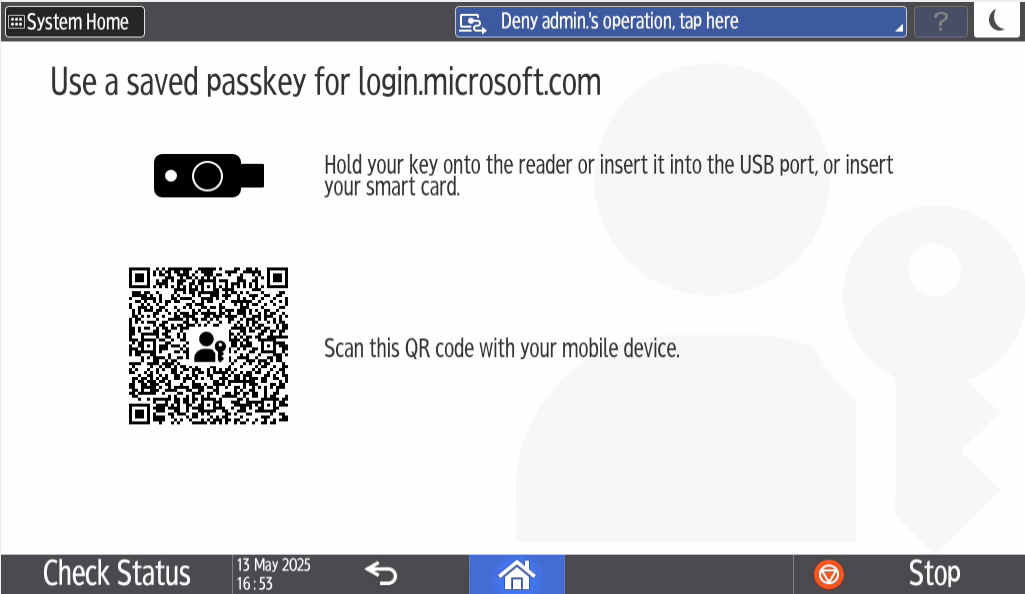
The 'Use a saved passkey for login.microsoft.com screen' appears.
-
Open the camera app on your mobile device and scan the QR code. Click the Sign in with a passkey popup on your mobile device.
-
Confirm the passkey you would like sign in with, and then click Continue to proceed. In the example video below, facial recognition is setup as the default verification. You might also have PIN or fingerprint verification available.
-
If verification is successful, you are logged into the SLNX Embedded on the MFP.
Troubleshooting
If authentication fails, the message displayed on the MFP may not be specific. You can attempt to retry the authentication process, select a different authentication method, or reset your passkey on your PC and then try again.
