Security Templates
Security Templates show the summary of template policy coverage throughout all devices.
-
Covered – the percentage of devices that are associated with at least one security tag via a security template.
-
Not Covered – the percentage of devices that are not associated with any security tag via a security template.
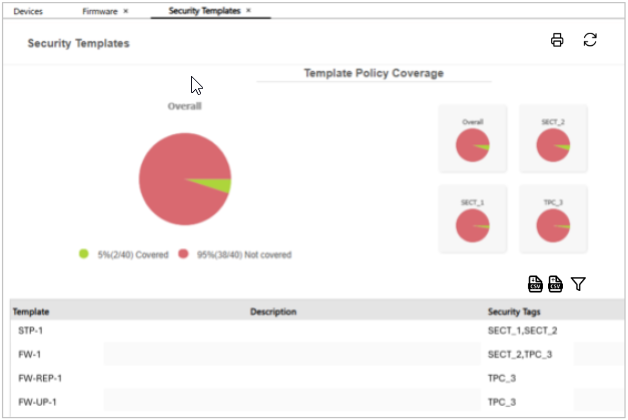
The table below the graph displays the list of security templates and associated tags.
As you create security templates and tags, the charts continue to be presented alphabetically. You can use the > icon to page through the security tags on the screen.
Importing and Exporting Tag Data
If you are migrating SLNX servers and you have already created multiple Standard or Extended Device Preferences template that are tagged in the Security Analyst Dashboards, you can use the Import and Export function to export the tag data, and then import the data to the migrated server.
Before migrating servers, click Export CSV and save the file to a temporary location. The file name will be prefaced with the current date.
Alternatively, you can obtain a correctly formatted sample CSV file if you click Import CSV, and then click Download Sample File from the screen that appears.
To import the CSV file, click Import CSV and then click Upload in the screen that appears. The data is loaded into the screen, and you can verify and then click OK to proceed.
