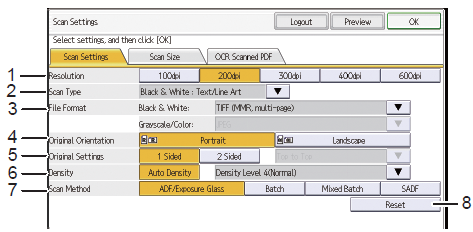
[Scan Settings] screen layout (when using the Standard Operation Panel)
-
Resolution
Select from [100dpi], [200dpi], [300dpi], [400dpi], and [600dpi].
The standard resolution setting is 200 dpi. The higher the resolution, the clearer the image and larger the file size.
If you select [100dpi] for the resolution and [PDF with OCR text/A (multi-page)] or [High Compression PDF with OCR text (multi-page)] for the file format, scanning will fail.
-
Scan Type
Specify the scan type according to the color and contents of the original.
-
Auto Color
-
Black & White: Text
-
Black & White: Text / Photo
-
B & W : Text/Line Art
-
Black & White: Photo
-
Gray Scale
-
Full Color: Text / Photo
-
Full Color: Glossy Photo
- Depending on the device, [Auto Color Select] may not be available. For details, contact the administrator.
- When [Auto Color Select] is selected, the color (black-and-white or color) of the original is automatically determined during scanning. When the document is determined to be color, a JPEG file is generated. When the document is determined to be black and white, a TIFF file is generated.
-
File Format
Specify the file format of the scanned document. When a black-and-white option is selected for [Scan Type], select the file format from the [Black & White] drop-down list. When a gray scale or full color option is selected for [Scan Type], select the file format from the [Grayscale/Color:] drop-down list.
For details about the selectable file formats, refer to Supported File Formats.
-
Original Orientation
When scanning an original using the ADF, specify [Portrait] or [Landscape] for the orientation that the original is placed in the ADF.
-
Original Settings
Specify [1 Sided] or [2 sided] for the number of scanning sides on the original.
When scanning the original using the ADF, specify the number of sides of the original and how the original opens to scan with the correct orientation.
When [2 sided] is selected, specify [Top to Top] or [Top to Bottom]. When the page closing position is on the side, specify [Top to Top]. When the page closing position is at the top, specify [Top to Bottom].
-
Density
Specify the scan density.
When [Auto Density] is selected, the color of the paper is automatically detected, and the scan density is corrected for originals that are off-white or have show-through, such as a newspaper, to improve the scanned image quality.
To adjust the image density, select the density level from the drop-down list next to [Auto Density].
-
Scan Method
Specify the scan method according to the volume of the original to be scanned.
-
ADF/Exposure Glass: This scans the original from the ADF or exposure glass.
-
Batch: This scans a large volume original in multiple jobs and sends them all at once. To scan additional originals, press the [Start] key, and after all originals are scanned, press [ ]. For details about the scanning procedure, refer to Batch Scan.
-
Mixed Batch: This scans multiple-page originals from the ADF or exposure glass and sends the originals all at once. To scan additional originals, press the [Start] key, and after all originals are scanned, press [ ]. For details about the scanning procedure, refer to Scan Multiple Originals Using the ADF or Exposure Glass or Scan Multiple Originals Using the Exposure Glass.
-
SADF (Semi-Automatic Document Feeder): This scans a large volume original in multiple jobs and sends them all at once. When additional originals are placed in the ADF, scanning starts automatically. After all originals are scanned, press [ ]. For details about the scanning procedure, refer to Batch Scan Using the SADF.
- When the maximum document size exceeds the internal memory of the device, the document is not sent.
- When [Mixed Batch] is selected and the original is placed both in the ADF and on the exposure glass, the ADF has priority.
- Wide format devices do not support [Mixed Batch].
-
Reset
Resets the values on the [Scan Settings], [Scan Size], and [OCR Scanned PDF] tabs to their defaults.