Configure a PDF with OCR Text
When selecting [OCR Scanned PDF], [OCR Scanned PDF/A], or [OCR Scanned High Compression PDF] for [File Format] on the [Scan Settings] screen, you can specify the OCR language and delete blank pages.
- The items displayed in [File Format] on the [Scan Settings] screen vary depending on the functions supported by the device and the administrator settings.
- PDF with OCR Text only supports those models that can create a searchable PDF on the device.
Display the [PDF with OCR Text] screen
-
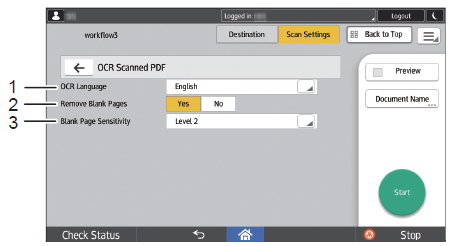
When using the Smart Operation Panel, press [Scan Settings] and then press [OCR Scanned PDF] on the [Scan Settings] screen.
-
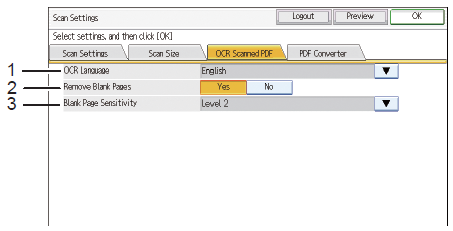
When using the Standard Operation Panel, press [Scan Settings] on the [Service Menu] or [Metadata] screen and then press the [OCR Scanned PDF] tab.
Send to PDF with OCR Text screen layout
When Using the Smart Operation Panel
When Using the Standard Operation Panel
-
OCR Language
Specify the language to use when performing OCR.
-
Remove Blank Pages
Specify whether or not to remove blank pages.
-
Blank Page Sensitivity
Specify the level for detecting blank pages. You can only specify this when selecting [Yes] for [Remove Blank Pages].
- Level 1 (Detects completely white pages as blank pages)
- Level 2
- Level 3
- Level 4
- Level 5 (Detects dense pages as blank pages)
- Link to Device Settings
This uses the same detection level set on the device.