Send to Gmail Screen Layout
When Using the Standard Operation Panel
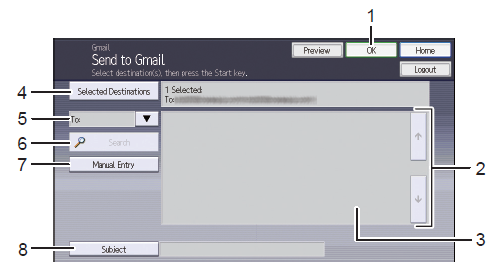
-
[OK]
This confirms the settings and displays the Service Menu screen.
-
[
 ] [
] [  ]
]
Use these buttons to display more e-mail addresses in the Search Results list.
-
Search Results List
This displays the e-mail address search results.
-
[Selected Destinations]
This displays the number of selected e-mail addresses and the actual e-mail addresses.
If the administrator has specified the destination e-mail addresses in advance, the specified e-mail addresses are displayed. Press [Reset All] to clear all selected addresses.
Press [Selected Destinations] to display the Selected Destinations screen.
-
[To]/[Cc]/[Bcc]
From the drop-down list, select the type of destination of the destination e-mail address. The types of destinations vary depending on the administrator settings.
-
[Search]
This searches for a destination e-mail address from the G Suite Directory or Personal Contact List and displays the search results in the Search Results list.
-
When Searching in the Personal Contact List: It searches for all e-mail addresses that contain the search keyword. Search is performed on contact names, contact e-mail addresses and personal group names with the e-mail address of the logged-in user or proxy user. Search by regular expression is not supported.
-
When Searching in the G Suite Directory: It searches on individual contact entries in the directory but not group entries. Search is performed against G Suite Directory individual contact names (concatenation of First Name and Last Name) and e-mail addresses. It searches names and e-mail addresses which contain the whole search string or starting with the search string. For example, a query with "James" matches users with the name "James Smith" or "Peter James" or the e-mail address "James.cameron@company.com".
For details about the adding a destination, refer to Specify a destination e-mail address (when using the Standard Operation Panel).
Depending on the administrator settings, this button may be grayed out and not be available.
-
[Manual Entry]
This displays the text input screen for entering an e-mail address.
For details about the adding a destination, refer to Specify a destination e-mail address (when using the Standard Operation Panel) .
Depending on the administrator settings, this button may be grayed out and not be available.
-
[Subject]
This displays the text input screen for entering the e-mail subject. Enter the subject on the text input screen, and press [OK].
Depending on the administrator settings, a specified subject may be displayed.
When the administrator has enabled the Send to Me function, "Send to Me" is displayed in Selected Destinations. Scanned documents are delivered to the selected destinations as well as to the e-mail address of the logged-in user. If the e-mail address of the logged-in user cannot receive the scanned documents, they are delivered to the e-mail address specified by the administrator.