Client Secure Print
Client Secure Print can be used to store print jobs in the data folder on the user's computer. Print jobs are stored locally within SLNX PC Client, eliminating the need to transmit print jobs to Server, and you can perform Secure Print promptly even in an area with limited bandwidth connection.
The printer driver must be installed on the client computer to perform Client Secure Print. To perform Client Secure Print with end-to-end encryption, see Client Secure Print with End-to-End Encryption.
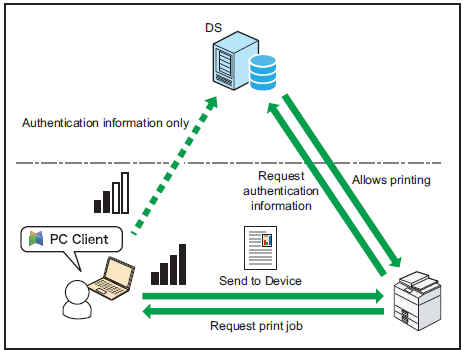
To Perform Client Secure Print:
Print a document on a local printer that has been configured with SLNX Secure Print Port.
User identification is required to perform Client Secure Print.
-
Select [Print] from the [File] menu in the application.
The print rules configured on the Delegation Server are applied to the print job, and the job is stored in the data folder of RICOH Streamline NX PC Client.
-
Check that the print job is spooled.
Message
Causes and Solutions
Printing has been cancelled.
Could not connect to the delegation server.
Cannot connect to the Delegation Server. The entered IP address is incorrect, or the network is disconnected.
Contact your administrator.
Printing has been cancelled.
Authentication has failed. Please check the login user name and password.
The login user name or password is incorrect. Check that the authentication information is correctly configured on the "Authentication Settings" screen.
Contact your administrator.
Printing has been cancelled.
Authentication by the delegation server has failed. Please ask the system administrator.
Failed to connect to the Delegation Server via SSL.
Contact your administrator.
The "Succeeded to spool the print jobs." message is displayed in the notification area. If spooling of the print job fails, one of the following messages is displayed:
-
Log in to the device, and then display the list of print jobs.
-
Select a print job in the list, and then print the job.
The selected print job is sent to the device, and the job is printed.
- If you attempt to shut down the client computer while a print job waiting to be printed remains, the shutdown process will be blocked by SLNX PC Client. Follow the instruction in the displayed message, and execute or cancel printing of the job.
Client Secure Print with End-to-End Encryption
You can perform client secure printing only by using End-to-End Encryption (E2EE). This will encrypt the print job data with AES256 during transit across the network. To print the encrypted job, you must login to the device using your PKI smart card.
- The PKI module is required to print encrypted jobs.
- User identification is required to perform Client Secure Print. When Windows Authentication is not used as the authentication method, specify the authentication information. For details, refer to Authentication Settings.
- You can view encrypted jobs only when you log in to a device using your PKI smart card. The encrypted jobs are not displayed in the job list of a mobile device or a laser printer not equipped with a 4.3-inch screen.
- This function cannot be used with Delegation Print.
- This function cannot be used when printing using external print systems.
To perform Client Secure Print with Encryption:
The procedure to submit a job using End-to-End Encryption is almost the same as the conventional Client Secure Print outlined above. The procedure has the following differences:
- Depending on the configuration, you may be asked to specify whether to encrypt the print job when printing to a local printer configured with SLNX Secure Print Port.
- To display the list of encrypted jobs, you must log in to the device using the PKI smart card.
- Depending on the configuration, document names are masked with asterisks for encrypted jobs.
For details about the encryption setting, refer to PKI Encryption Settings.