Configure the Display Language
When the administrator has configured the user language registration function, you can register a display language for the operation screen of the device for each logged-in user.
To register a language, use the [Change Language] screen. The language display of the device varies depending on the whether the user language registration function is enabled or disabled.
-
When the user language registration function is enabled: When you log in, the operation screen is displayed in the language selected on the [Change Language] screen.
-
When the user language registration function is disabled: When the Smart Operation Panel is used, all operation screens are displayed in the language specified on the device.
When the Standard Operation Panel is used, the language selected on the [Change Language] screen is applied only to the SLNX screen. It is not applied to the display language of the device.
-
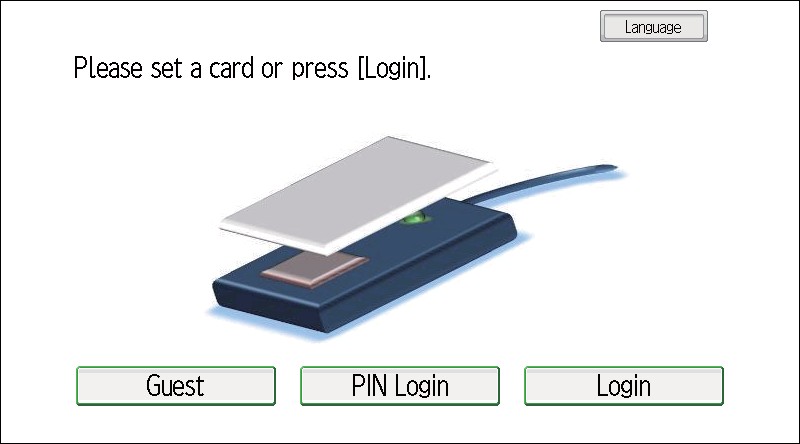
Press [Language] on the login screen.
Example of a login screen (when using the Smart Operation Panel)
-
Select the display language.
-
When using the Smart Operation Panel, press [OK]. When using the Standard Operation Panel, press [OK].
Example of a login screen (when using the Standard Operation Panel)
- When you log in again, the language at logout is displayed.
- When the MFP starts for the first time or after you log out, the display language specified on the device is applied.
- The supported languages vary depending on the model of the MFP and the language firmware installed on the device.
For details on changing the language settings of the device, see the user's guide supplied with the device.