Access an MFP
Depending on the authentication method specified by the administrator, a login screen is displayed on the operation screen of the device with the SLNX application installed. To use a device, log in.
Log Out from a Device to preserve device security.
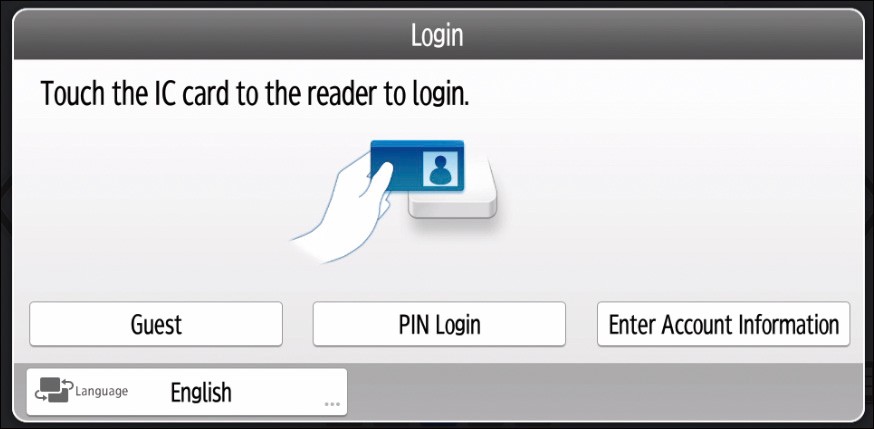
Login Screen Examples
Example of a login screen (when using the Smart Operation Panel)
Example of a login screen (when using the Standard Operation Panel)
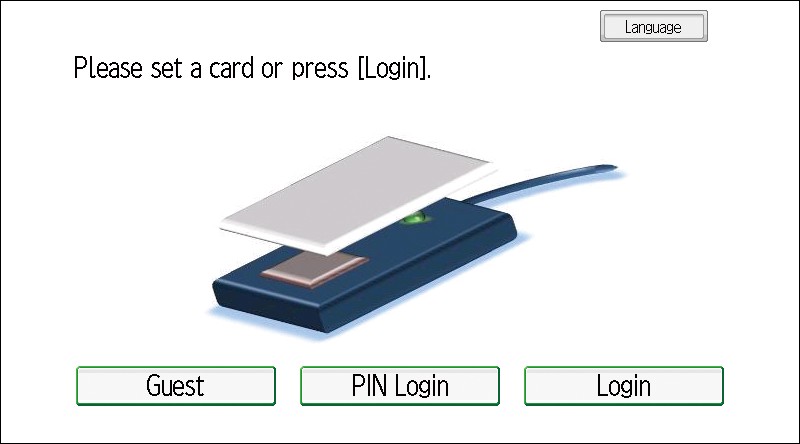
The buttons that appear on the login screen vary depending on the authentication settings of the administrator.
When using the cached user information to log in to a device, you do not need to enter the password even if you select a login method that requires a password.
After the administrator configures cost centers: The Cost Center screen is displayed. For details, refer to Select a Cost Center.
Before the administrator specifies a cost center: When the Smart Operation Panel is being used, the screen after login configured by the administrator is displayed. When the Standard Operation Panel is being used, the Select a Workflow screen of SLNX is displayed.
Topics:
-
Exceeding the Usage Limit(If the maximum number of users has been reached, a warning message is displayed after login)