Customize the [Scan Settings]
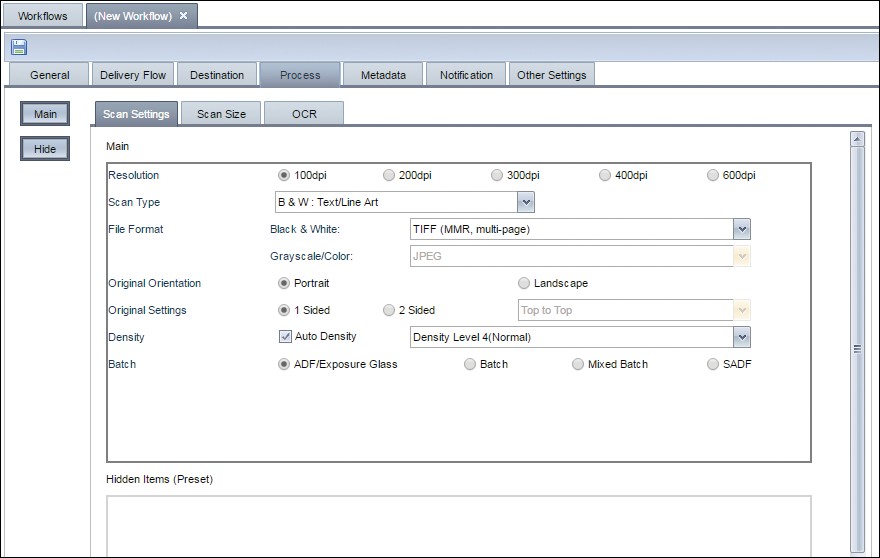
The scan settings include the resolution, file format, and document side, and these parameters are applied to a document when scanning. The [Scan Settings] tab is automatically added to all new workflows.
- [Scan Settings] tab of the Management Console
-
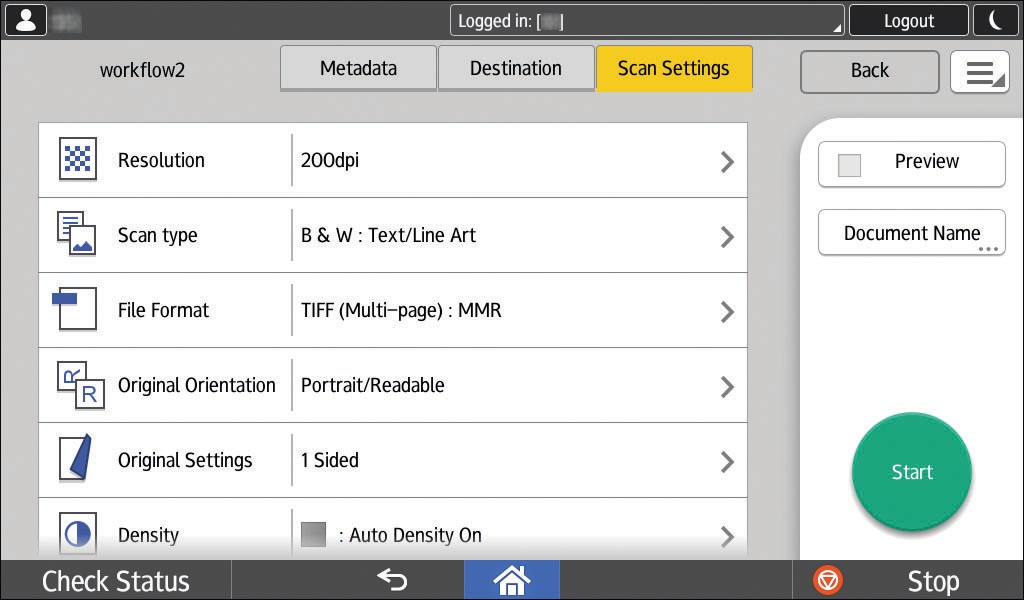
Display on the operation screen of the device (Smart Operation Panel)
-
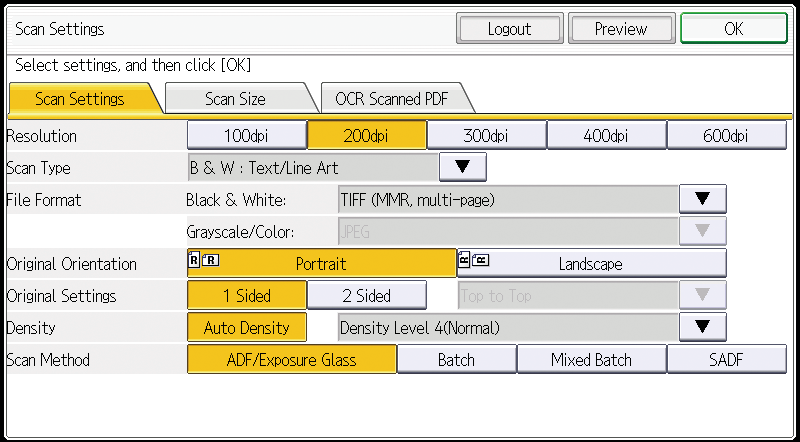
Display on the operation screen of the device (Standard Operation Panel)
Restrict the Settings
You can restrict the values that the user can select with [Scan Settings].
On the [Scan Settings] tab of the [Process] tab, right-click [Resolution], [File Format], or other setting items, and click [Edit Display/Hide Properties] to display the selection window for the settings.
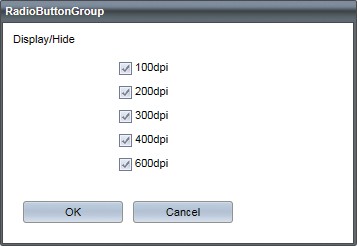
Select only the settings to be displayed on the configuration screen of the device, and click [OK].
The setting items can be hidden on the screen. When the setting item is set to Hide, it is grayed out on the Smart Operation Panel, and it is not displayed on the Standard Operation Panel.
The only scan settings that can be used are the functions the target device supports. If the device does not support the settings, the initial values of the device are applied.